Staff & HR
Give or remove access for one person
Change single permissions for one staff member without changing their whole role.
AOMS Support
1 min read
Open HR & Staff → Staff and click the person. Scroll to Access for this person (1).
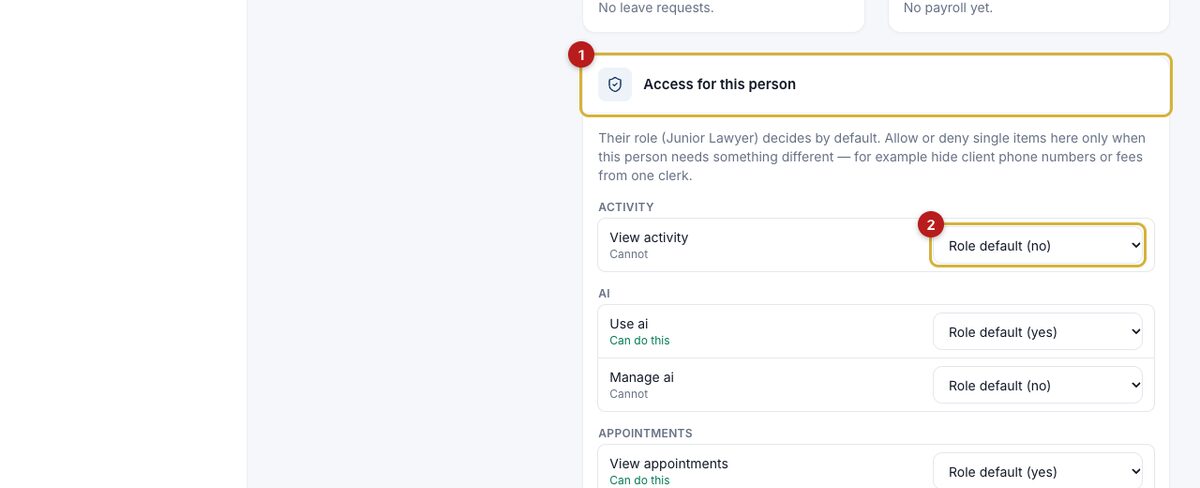
- Every item first follows the person's role ("Role default").
- Change one item (2) to Allow for this person or Deny for this person, e.g. deny See contact details of clients to hide phone numbers and CNIC from a clerk, or allow View billing for an accountant.
- Click Save access. The change works at once.
Nobody can change their own access or the owner's, and a manager cannot give more than they have. Every change is recorded in Security Center.
#guide